
Reading Time: 4 minutes
We are over a quarter of the way through the initial semester of my law practice technology class. Talk about building an airplane while flying it. My book has provided the skeleton and now I’m figuring out what can be accomplished within a 26-hour semester. In order to keep it practical—because otherwise, what’s the point?—we’re going to be dipping into some consumer-focused tools like Microsoft’s low-code tool PowerAutomate. I’m not sure if it has always been such a mess to navigate but it seems to lure with simplicity then dunk a visitor with a confusing user experience.
Formerly known as Microsoft Flow, it’s not a tool I’ve messed with much on my own. I have a longer history with Zapier and If This Then That (IFTTT) where I have dabbled over the years because I am not Microsoft-centric in general. But the legal profession is Microsoft-centric and so introducing law students to this tool makes sense to me.
The technological baseline for this class was “can use typical Microsoft Office apps and a web browser” so it was a low expectation on my part. While I would love to dig into macros and things, I was looking for something much simpler. I am not entirely convinced PowerAutomate is simple enough but I think it depends on what you ask the law students to do.
Keep It Simple, Students
As I stress to my students, it’s not about the technology either. The goal is to think about workflows. What is the process that the lawyer is trying to accomplish (or the staff person, who is often integrated with the lawyer workflow) and where does technology make an improvement. If it doesn’t make an improvement, there is no need to adopt it. If it does make an improvement, and the student understands the risks of using the technology, then they can implement it.
I am definitely in the camp that “lawyers do not need to know how to code”. People can make toast without knowing how to make toasters. But over my career there has been a substantial value in knowing what might be possible. On more than one occasion, because I have explored, however superficially, a variety of technology, I have been able to ask and probe technology staff about options they might not have considered. That is my hope with exposing students to workflow automation and macro concepts. It is not that they should be planning to code but they should know enough to tell people who do what it is they want, and why.
We are going to create very simple, two step workflows. I spent a lot of time testing out possible combinations and I think there’s a good deal of choice. But some of them have what look like simple requests—select a Start Time for your calendar event action—that require a programmatic component.
I’ve cooked up a couple of examples. The simplest, two-step workflows are the ones I’ll steer the students towards. One involves an incoming email with a subject line trigger that will cause a calendar event to be created. The second is a calendar event that will trigger the creation of a SharePoint folder structure.
But I’ve also created some where they can trigger the initial action and see a more complex set of outputs. For example, I have a simple law firm intake form for a prospective client using Microsoft Forms. When the form is completed, it is captured by PowerAutomate which generates SharePoint folders for the new client (based on a standardized folder naming convention), stores a copy of the form, and sends the form information (email with attachment) on to someone to create the appointment (a step which could also be automated).
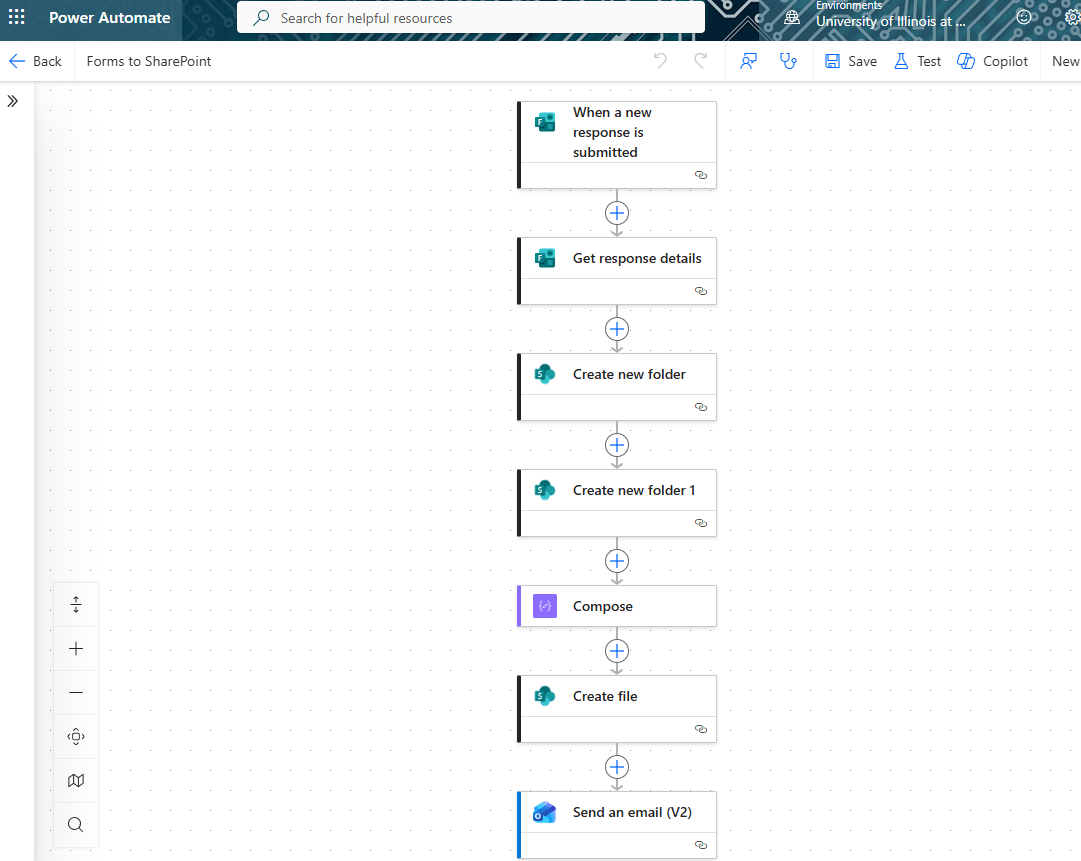
[Here’s a link to that workflow (compressed zip file) if you want to import it into your own dashboard]
So the students will complete the form and we’ll be able to toggle over to SharePoint to see the new folders and files appear. I hope!
Why create SharePoint folders based off a prospective client query? It puts the client information out onto a storage system where it can be managed. It may end up that the only other thing that goes in there is a non-engagement letter but it’s part of managing that information lifecycle.
The challenge for bringing law students into PowerAutomate is that it can very quickly lead to know how to debug whatever Microsoft is doing. Some choices aren’t clear. What is the difference between using an Outlook (v2) v. Outlook (v3) v. Outlook (v4) action? Why is there a OneDrive for Business “create file” and another for SharePoint and when would someone use one or both, and why not a “create file” action that allows you to select?
The first hurdle I ran into was trying to manage a calendar event starting time. If your first workflow action choice isn’t a good one, your next action may not receive the necessary information. You won’t be able to select it from a dynamically populated list of inputs.
This leads to wondering how “low” low-code really is. It took me a bit of digging to realize that, for Start Time and End Time on a calendar event, I could add days (to have a calendar event set in the future) but primarily using programming functions. I was surprised that a Microsoft Form does not capture a time, so although I could prompt a potential client for a proposed appointment day, I had to capture time as a text entry. This would mean converting that text into time within PowerAutomate.
I punted. For this class, at least, I’ve shared the code for the class so they can add days with a bit of cut-and-paste. There are some students who will get what this means
addToTime(utcNow(),30,'Days')
but I do not want to create an obstacle to getting the workflow to run. This means that, in addition to pre-building some workflows, I will probably start to save some snippets like this so that the students can just drop them in and customize them.
Power Loss
One thing I’m not thrilled about is trying to have the student navigate the Microsoft branding soup. We’re focused on PowerAutomate which is now larded up with Copilot AI. It has a menu on the left with templates, which is helpful, and the ability to create new workflows and see existing ones.
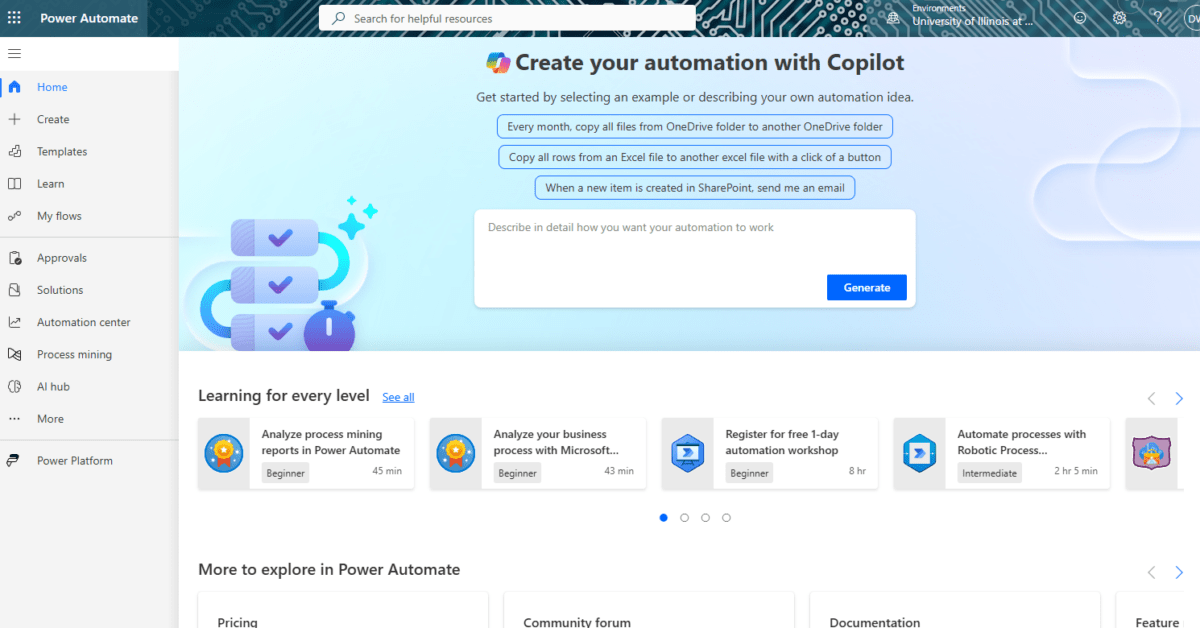
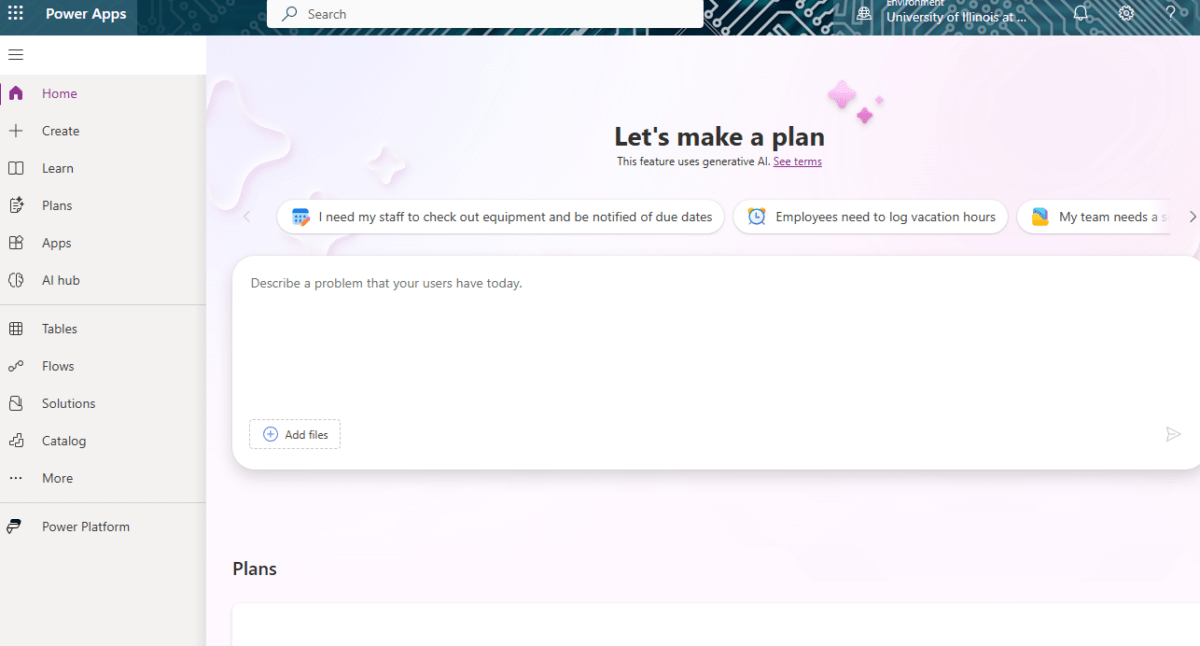
Then there’s PowerApps. Another AI interface but with a lot of the same chrome and menuing. But the customizable menu is different and doesn’t carry over customizations from the nearly identical menu at PowerAutomate, so if you switch over to it or land on it, the experience is going to be different. You no longer see Templates as an option, which is where you can find a bunch of easy to use or easy to copy examples for people who are learning. The template page also makes it clearer that you can link up Microsoft and other provider platforms (Google to Microsoft, for example, which would be advantageous for a student who has not yet moved off Workplace and over to Microsoft 365).
Now they have Power Pages, which offers the ability to create a website using AI (although they also have regular templates but you have to skip past some of the AI prompt prompting). I guess if someone is not using Wix or SquareSpace or what have you, this is an option, but I can’t see businesses using this. Maybe it’s a replacement for universities that used to allow everyone to have their own webspace. #RIP ualr.edu/~dwhelan
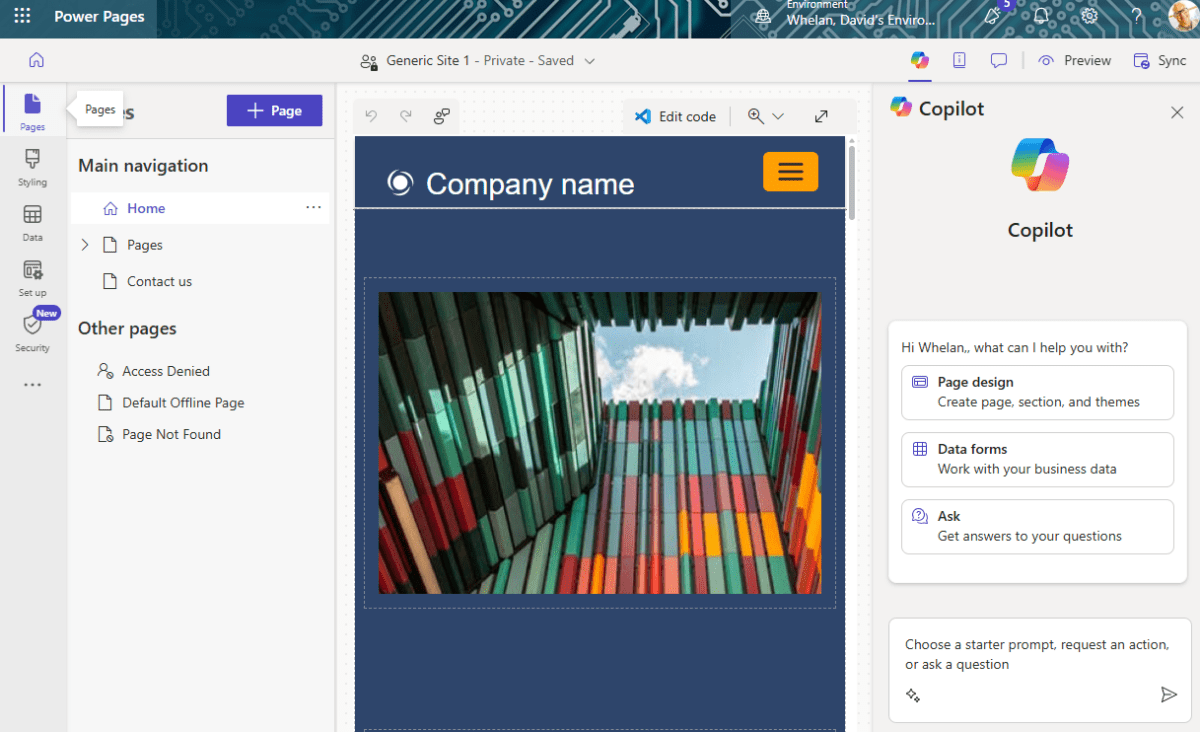
I can’t say I’m really surprised. For a company that is renaming everything to Copilot, having a bunch of Power- prefixed sites that all share the same functionality but badly seems par for the course.
Using PowerAutomate should also help to highlight that a lot of automation is already possible within Microsoft Outlook and the other apps. If I want to send a calendar event to multiple people, I can do that within Outlook. If I want to set a recurring calendar event, I can do that. If I want to send a calendar event only when another event happens or I want to have a recurring event but one that recurs on a non-regular basis (perhaps like a court fast docket schedule), PowerAutomate can fill that gap.
PowerAutomate for lawyers isn’t about getting them to code. It’s about showing them the possibilities of practice management automation (with or without AI). That awareness can lead them to incorporating automation in the manner that most suits them.